 Too Long; Didn't Read
What works, what breaks, and how to schedule tasks with confidence.
Why Automation Exists (And Why Cron Still Matters)
Backups, log rotation, cache cleanup, SSL renewals. These jobs aren’t difficult, but they’re easy to forget. Cron exists to take those small, repeatable tasks out of human hands and make sure they run on time, whether you’re logged in or not.
That’s why Cron has survived decades of new tools and platforms. It does one thing well: quietly runs scheduled jobs on local systems without dependencies, dashboards, or orchestration layers.
If you’ve ever logged into a server just to run the same command you ran yesterday, you already understand why automation exists.
Before going any further, it helps to clear up a naming confusion that trips up almost everyone early on.
Cron vs Crontab vs Crond (Quick Mental Model)
These terms are often used interchangeably, but they mean different things:
- Cron is the scheduling system as a whole.
- crond is the background daemon that runs continuously and executes scheduled jobs.
- crontab is the configuration file where schedules are defined.
A simple way to think about it:
- crond is the engine.
- crontab is the instruction sheet.
- Cron is the entire mechanism working together.
When you run crontab -e, you’re editing the schedule. The daemon is already running in the background, waking up every minute to check whether something needs to execute.
This distinction matters later, especially when troubleshooting jobs that look correct but never run.
What Problem Does This Solve?
The core problem Cron solves in system administration is making sure small but essential tasks run on time without external dependencies.
- You have tasks that must run on schedule, like backups, cleanups, and health checks, without relying on a human or a heavy automation pipeline.
- You need predictable, local automation that does not depend on cloud schedulers or container orchestration systems.
- You want something that just works on any Linux machine, including older systems quietly running in production.
Key Comparison Table
| Feature / Need | Cron | Systemd Timers | Kubernetes CronJobs |
| Best Use Case | Local server tasks | OS-level automation | Containerized workloads |
| Handles Dependencies | ❌ No | ✔️ Yes | ✔️ Yes |
| Logging Quality | Basic | Strong | Cluster-native |
| Setup Complexity | Very low | Medium | High |
| Available Everywhere | ✔️ Yes | ❌ No | ❌ No |
Architecture Diagram (Cron Workflow)
While Cron appears simple, most troubleshooting stems from misunderstanding how the daemon actually executes tasks. This flow highlights the gap between your login session and the minimal environment where Cron lives.
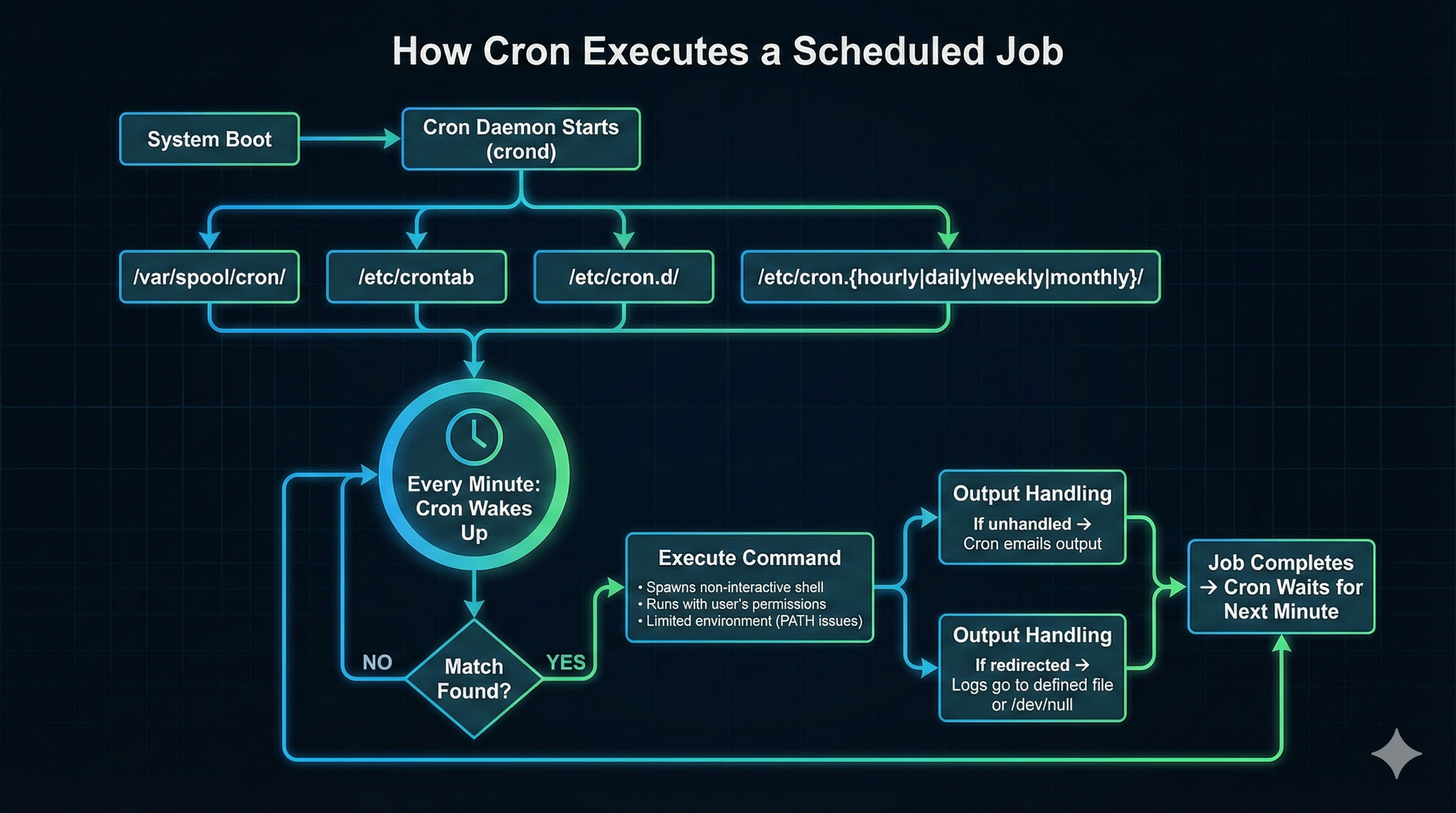
How Cron Executes a Scheduled Job:
- Daemon Initialization: The
cronddaemon starts at system boot and runs persistently in the background. - Reading Sources: Every 60 seconds, Cron scans multiple directories:
/etc/crontab,/etc/cron.d/, and per-user crontabs in/var/spool/cron/. - The Minute Check: The daemon compares the current system time against the 5-field pattern of every registered job.
- Execution: If a match is found, Cron spawns a non-interactive shell, typically
/bin/shunless explicitly overridden. - Environment Isolation: The job runs with a very limited
PATH, which is why absolute paths are mandatory for production reliability.
Why Cron Still Matters
Cron has been around for decades, but it hasn’t lost its relevance. If you manage Linux servers, you rely on it every day, whether you are rotating logs, running backups, clearing temporary files, or triggering lightweight health checks. Its real value is that it stays out of your way. It just works.
Even with modern schedulers like Kubernetes CronJobs, Jenkins, and systemd timers, Cron remains the foundation for simple, local, time bound automation. You don’t need an orchestration layer or a CI/CD pipeline for a task that quietly runs at 3 AM and depends on nothing else.
That is why Cron continues to exist in DevOps workflows. It handles low dependency but critical background jobs like SSL renewals, database dumps, cache cleanups, and routine maintenance. The boring work, but the work that keeps systems healthy.
Key Insight: Cron isn’t competing with Kubernetes or CI systems. It complements them by handling the jobs that don’t need an entire infrastructure tier behind them.
How Cron Works: The Basic Concept
To use Cron effectively, you need to understand the one component that makes everything work, the Cron daemon (crond or cron). It’s a small background process, but it controls every scheduled task on the system. Cron’s workflow is simple and predictable, which is exactly why it’s reliable.
How It Actually Works
Cron wakes up once every minute, reads every scheduling file it manages, matches the current timestamp against each job’s time fields, and runs the commands that match. That’s all it does. It doesn’t track state, dependencies, or success history. It’s intentionally minimal.
- The daemon starts automatically during the system boot sequence.
- Every minute, Cron evaluates all entries across both user and system schedules.
- If the current time matches the pattern defined in a job’s five time fields, the job runs.
- Cron spawns a lightweight subshell, usually
/bin/shor/bin/bash, depending on the configuration. - It performs no smart logic and offers no retries, chaining, or condition handling.
Key insight: Cron doesn’t interpret intent. It only matches timestamps. If the numbers align, the job runs, even if that means running twice because both the “31st” and “Tuesday” fields matched. This literal behavior is what makes Cron predictable and also why beginners often get tripped up.
Cron Syntax: The Five Fields Explained
Cron looks intimidating at first because of the five asterisks, but the format is very literal. Once you understand what each field means, you can read any Cron line like a sentence.
Cron uses five time based fields followed by a command. Each field controls when the job runs. Cron does not make assumptions. If the fields match the current minute, it runs. That’s all. Most beginner mistakes happen because Cron matches fields using simple OR rules, not human calendar logic.
Bullet Breakdown: The Five Fields
The Format:
┌───────── Minute (0–59)
│ ┌─────── Hour (0–23)
│ │ ┌───── Day of Month (1–31)
│ │ │ ┌─── Month (1–12 or Jan–Dec)
│ │ │ │ ┌ Day of Week (0–7; Sunday = 0 or 7)
│ │ │ │ │
* * * * * command-to-run
| Field | Meaning | Allowed Values | Example |
| 1st | Minute | 0–59 | 30 = at :30 |
| 2nd | Hour | 0–23 | 3 = 3 AM |
| 3rd | Day of Month | 1–31 | 1 = 1st of month |
| 4th | Month | 1–12 / Jan–Dec | 12 = December |
| 5th | Day of Week | 0–7 | 1 = Monday |
Symbols: The Language of Scheduling
Cron lets you build patterns using four simple symbols:
| Symbol | Meaning | Example | What Happens |
| * | Wildcard | * * * * * | Every minute |
| , | List | 9,17 | 9 AM and 5 PM |
| – | Range | 10-14 | 10 AM to 2 PM |
| / | Step/Interval | */15 | Every 15 minutes |
Common Beginner Mistakes
Cron behavior can vary slightly between implementations, especially around day-of-week handling.
Always test schedules on the target system.
- Misunderstanding OR Logic: If you specify both Day-of-Month and Day-of-Week, Cron triggers if either matches. It is not an AND condition.
- Day 0 = Day 7: Both mean Sunday. Use one consistently.
- Intervals start at zero:
*/10means 00:00, 00:10, 00:20—not “10 minutes after I save the file.” - Cron doesn’t understand calendars. It doesn’t know that “February doesn’t have 31 days.” If the field never matches, the job simply never runs.
Key Insight: Cron isn’t smart it’s predictable. If you understand that every field is a strict match and nothing more, you avoid 80% of the confusion people have with scheduling.
Side by Side Comparison: User Cron vs System Cron
This is where most troubleshooting begins. Knowing where a job lives determines its permissions, its security boundary, and how you manage it in production.
| Feature | User Cron (crontab -e) | System Cron (/etc/crontab, /etc/cron.d/) |
| Execution Privilege | Runs as the specific user (e.g., devops). | Runs as the user specified in the 6th field. |
| Management Method | User runs crontab -e. | Root edits files directly or via packages. |
| Syntax Format | 5 time fields + command. | 6 fields: 5 time fields + User + command. |
| Storage Path | /var/spool/cron/ (Internal). | /etc/crontab or files in /etc/cron.d/. |
| Best Use Case | App-specific tasks, personal scripts. | System maintenance, service-level jobs. |
Key Insight: The 6th field in System Cron is the security line. Never run a job as
rootif it only needs to touch web files; specifywww-dataornginxinstead to enforce the principle of least privilege.
Writing Your First Cron Job
Creating a Cron job is simple, but doing it correctly requires discipline. The crontab -e command is the standard entry point for user-level automation. It includes instant syntax validation, which prevents you from installing a broken schedule.
How to Create a Cron Job
- Open the editor: Run
crontab -e. If it’s your first time, pick a sensible editor likevimornano. - Add the entry: Scroll to the bottom and add your line (Schedule + Command).
- Save and Exit: If the syntax is valid, you’ll see:
crontab: installing new crontab. - Verify: Always run
crontab -lafterward to confirm the job is active.
Example: Daily Backup at 3 AM
# Daily backup at 3 AM
0 3 * * * /usr/bin/bash /home/user/scripts/backup.sh
- 0 3: Triggers exactly at 3:00 AM.
- /usr/bin/bash: Explicitly calls the shell (Don’t rely on the default).
- /home/user/scripts/backup.sh: The full, absolute path to your script.
Key insight: Always use the full path for the interpreter. Specifying
/usr/bin/bashor/usr/bin/python3avoids the most common cause of Cron failures, a restricted PATH variable that cannot find your binaries.
Cron Environment: What People Usually Forget
If your script works when you run it manually but fails when Cron runs it, the environment is the culprit. Cron runs in a stripped-down, non-interactive shell. It doesn’t know about your .bashrc, your aliases, or your custom PATH settings.
Core Environment Issues
- The PATH is tiny: Cron usually only sees
/usr/bin:/bin. If your script callsrsyncordockerwithout a full path, it will fail. - Minimal Shell: Cron often defaults to
/bin/sh. If you use Bash-specific syntax (like arrays or[[ ]]), your script will crash unless you use a proper shebang. - Silent Output: By default, Cron tries to email output. On most modern servers, this means the logs simply vanish into a black hole.
- No Interactivity: You cannot prompt for a password or confirmation. Scripts must be 100% self-contained.
Key insight: A Cron safe script is a self reliant script. It must define its own interpreter, its own variables, and its own logging path. Never assume Cron knows where your tools are located.
Using Scripts With Cron
Running long or complex commands directly inside a crontab line is a mistake. Cron should only be the trigger, not the logic container. A clean production setup uses a crontab entry to point to a script; that script then handles the actual operations, error checking, and logging.
Why Scripts Outperform One-Liners
- Readability: A script is easier to debug and update than a 200-character escaped string in a crontab file.
- Version Control: You can track script changes in Git; you can’t easily audit manual edits to a live crontab.
- Robustness: Scripts allow for loops, conditionals, and structured error handling—things Cron wasn’t designed to do.
- Visibility: Scripts can write directly to dedicated, rotating log files so you actually see what’s happening.
How to Build a Cron-Safe Script
- Use a Shebang: Always start with
#!/bin/bashor#!/usr/bin/env bashto ensure the correct shell is used. - Set Permissions: Ensure the script is executable using
chmod +x. - Absolute Paths: Use full paths for every binary called inside the script (e.g.,
/usr/bin/curlinstead ofcurl). - Internal Logging: Build time-stamped logging directly into the script logic to track success and failure.
Key insight: For most production scripts,
set -euo pipefailhelps catch silent failures, but test carefully in scripts with conditionals or traps.
Troubleshooting: The Silent Failure KILL-SWITCH
Cron’s biggest flaw is that it fails quietly. It won’t throw an error on your terminal; it just won’t run. Troubleshooting is a mechanical process of verifying the daemon, checking system logs, and identifying environment mismatches.
The 3 Core Troubleshooting Steps
- Check the Daemon: Verify that the cron service is actually active using
systemctl status cron. - Consult System Logs: Depending on your distro, check
/var/log/syslog(Ubuntu/Debian) or/var/log/cron(RHEL/CentOS). - Use Journalctl: For modern systemd systems, use
journalctl -u cron.service -rto see the most recent events first.
Common Failure Patterns
- Permission Denied: The script isn’t executable, or the user lacks permission to the target directory.
- Command Not Found: This is almost always a PATH issue. Use absolute paths instead of relying on environment defaults.
- Job Overlap: A new instance starts before the previous one finishes. Use
flockto prevent resource contention.
Key insight: When Cron appears to fail silently, it’s rarely a syntax error. In most cases, it comes down to a PATH or shell mismatch between your interactive environment and Cron’s stripped down execution context.
Scenario Based Evaluation
Readers tend to engage more with clear “best for” scenarios. Use this framework to decide whether Cron is actually the right tool for your specific job.
- Permission Denied: The script isn’t executable, or the user lacks permission to the target directory.
- Best for OS level automation: Use systemd timers if you need tighter logging integration or want a task to wait until another service has finished.
- Best for production security: Use system Cron files under
/etc/cron.d/to explicitly run application level tasks as non root users. - Best for learning: Start with user Cron using
crontab -eso you can experiment safely without touching system level configuration.
Advanced Cron Techniques
Once you master the five fields, the next step is building “industrial-strength” automation. This means handling overlapping jobs and coordinating with modern infrastructure like Docker.
Preventing Overlapping Jobs (Why Locking Matters)
In production, a backup script might take 70 minutes to complete, but the Cron schedule triggers it every hour. This creates resource contention and increases the risk of data corruption.
- The solution: Use
flockfor file locking. - How it works:
flockcreates a lock file. If the file is already locked by a running instance, the new run exits immediately. - The command:
* * * * * /usr/bin/flock -n /tmp/myjob.lock /path/to/script.sh
Using Cron with Docker Containers
Avoid installing Cron inside a container in most cases. It adds unnecessary complexity and violates the one-process-per-container principle. While some legacy setups still do this, host-based scheduling is almost always cleaner and more observable.
- Best practice: Run Cron on the host machine.
- Execution: Use
docker execto trigger the task inside the running container. - Example:
0 0 * * * root /usr/bin/docker exec app_container /usr/bin/python /app/task.py
Key insight: Cron handles scheduling. Docker provides the runtime environment. Keeping these responsibilities separate results in a cleaner and more observable infrastructure.
Side-By-Side Comparison: Cron vs. Alternatives
| Tool | Best Used For | Why Choose It? |
| Cron | Local server maintenance | Zero overhead; available on every Linux box. |
| Systemd Timers | OS-level dependencies | Better integration with the system journal and service start-up. |
| K8s CronJobs | Clustered/Container workloads | Handles secrets, retries, and distribution across a cluster. |
| Jenkins/GitLab | Complex workflows | Provides a UI, history, and multi-stage dependency logic. |
Closing Thoughts: Using Cron the Right Way
Cron works because it’s simple. It doesn’t track state or understand intent. If the time matches, the job runs. That’s why it’s reliable and also why jobs fail when scripts assume an interactive shell or a full environment.
Treat Cron as a scheduler, not a place to put logic. Let it handle when something runs, and keep the actual work inside scripts that define their own shell, paths, and logging. Shortcuts and one-liners might work once. They rarely last in production.
Cron is best for local, low-dependency tasks like backups, cleanups, renewals, and basic health checks. When a job needs retries, coordination, secrets, or needs to run across systems, Cron isn’t the right tool. Use something designed for that.
Used within those limits, Cron is still one of the most dependable tools on a Linux system. It runs quietly, on time, and does exactly what it’s told nothing more.